
How to Check Android Version in Phone (2025 Updated Guide)
If you’re wondering how to check Android version in phone, this detailed 2025 guide will help you find it in seconds — whether you use Samsung, Vivo, Xiaomi, Motorola, or any other Android device.
Knowing how to check Android version in phone ensures you always stay updated with the latest Android features and security patches.
Why It’s Important to Know Your Android Version
Your Android version defines what features your phone supports and how secure it is.
Here’s why it matters:
App Compatibility: Many apps require a minimum Android version to work smoothly. For example, some banking and AI apps may need Android 12 or higher.
Security Updates: Google releases monthly patches to protect your phone from malware and viruses.
Performance Improvements: New versions often fix bugs and add battery optimizations.
Customization: Android versions introduce new themes, gesture controls, and privacy settings.
If your phone is lagging or missing new features, checking your Android version can help you decide whether to update your device or not.
How to Check Android Version in Phone (Step-by-Step)
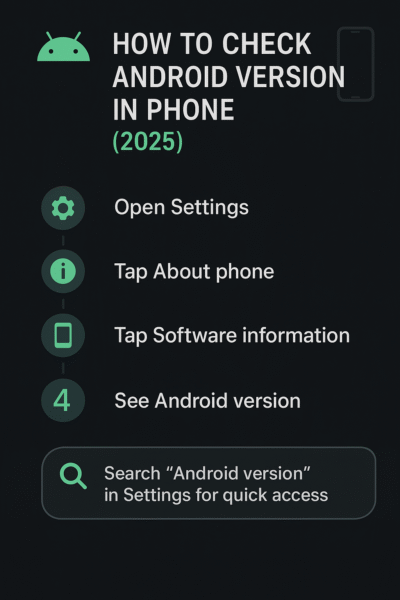
Open Settings on your Android phone.
Scroll down and tap About phone (on some devices, it’s under System).
Tap Software information or Android version.
You’ll now see your Android version number, such as Android 13, Android 14, or Android 15 (Beta).
Pro Tip: If you’re in a hurry, use the search bar inside Settings and type “Android version” — it’ll instantly show you the correct screen.
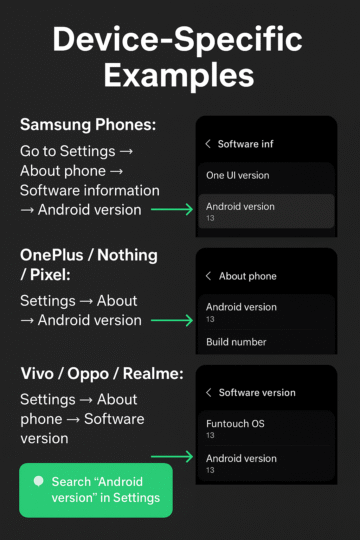
Device-Specific Examples
The steps for how to check Android version in phone can vary slightly depending on the device brand.
Samsung Phones:
Go to Settings → About phone → Software information → Android version.
You’ll also see details like One UI version and security patch level.
OnePlus / Nothing / Pixel:
Settings → About → Android version.
This section will show both the Android version and build number.
Vivo / Oppo / Realme:
Settings → About phone → Software version.
These devices may also list Funtouch OS, ColorOS, or Realme UI versions separately.
How to Find Android Version in Mobile (Alternate Method)
Sometimes manufacturers modify the Settings layout, so you can also check the Android version this way:
Open Settings → System.
Tap Advanced → System update or Software update.
Here, you’ll find your current Android version and whether a new update is available.
This method is another quick way for users searching how to check Android version in phone with more system details.
How to Know Android Version of My Phone Online
Even if your phone is broken or not switching on, there are still ways to learn how to check Android version in phone using your Google Account.
Visit myaccount.google.com.
Sign in with the same Google ID linked to your phone.
Open Devices and select your device from the list.
You’ll see information like Android version, model number, and last sync date.
This is a safe and official method provided by Google, and it works for all Android devices.
Check Android Version on Windows or macOS (Using Emulator or Device Manager)
If you’ve connected your phone to a computer, you can also see your Android version through software tools.
For Windows:
Connect your phone via USB.
Open Command Prompt and type
adb shell getprop ro.build.version.release(for developers).It will display the Android version directly.
For Mac:
Use Android File Transfer or Android Studio.
When connected, go to Device Manager → you’ll see your Android version info.
(Note: This method is more technical and mainly for developers.)
With these simple methods, you now know how to check Android version in phone and keep your device updated safely in 2025.
Bonus: How to Check Build Number and UI Version
Besides your Android version, you can also check your Build Number, Kernel version, and UI version (like One UI, ColorOS, OxygenOS, or MIUI).
To do this:
Go to Settings → About phone → Software information.
Tap on Build number multiple times to unlock Developer Options.
You’ll see details about the Android build, release date, and interface version.
These details are useful when troubleshooting or comparing phones.
Latest Android Versions in 2025
Here’s a quick summary of the latest versions:
| Android Version | Codename | Release Year | Key Highlights |
|---|---|---|---|
| Android 13 | Tiramisu | 2022 | Improved privacy controls |
| Android 14 | Upside Down Cake | 2023 | Battery saver + predictive back gesture |
| Android 15 | Vanilla Ice Cream | 2025 | Smarter AI, better performance |
Knowing this table helps users identify how old or new their Android version is.
Once you’ve checked your Android version, you might also want to learn how to view your saved WiFi password on Android — our detailed 2025 guide covers all steps for Android, Windows, and iPhone users.
FAQ: Common Questions About Android Version
Q1. How to find Android version in mobile easily?
Open Settings → About phone → Android version. You’ll instantly see your version number.
Q2. What is the latest Android version in 2025?
As of 2025, Android 15 (Vanilla Ice Cream) is the latest stable version available on Pixel and newer Samsung models.
Q3. How to check Android version on Samsung phone?
Go to Settings → About phone → Software information → Android version.
Q4. Can I update my Android version manually?
Yes. Go to Settings → System → Software update → Check for updates. If available, download and install it.
Q5. What does “Build number” mean?
It’s the specific version code of your Android system build, showing the exact update your phone is running.
Tips to Keep Your Android Updated
Enable auto updates to receive the latest security patches automatically.
Avoid rooting or installing custom ROMs unless you understand the risks.
Regularly restart your phone — it helps clear cached data and improve performance.
Free up space before major updates to prevent installation errors.
Best Practice for Users (2025)
Regularly checking your Android version ensures your device stays secure and optimized. Every version adds new tools for privacy, battery life, and performance.
If your phone no longer gets updates, consider upgrading to a newer model with at least Android 13 or higher for the best experience. To make the most of your Android device, don’t miss our list of 5 must-have mobile accessories for 2025.