
How to transfer data from old phone to new phone (2025 Step-by-Step Guide)
We’ve all been there — you buy a shiny new phone, and the biggest worry is how to transfer data from old phone to new phone safely without losing anything important. The Good news is that in 2025, it’s way easier to move everything safely — no stress, no cables (unless you prefer them).
This guide covers every method — Google Sync, iCloud, Move to iOS, Smart Switch — and real-world tips that actually work. Before starting, it’s good to check your Android version to ensure both phones are up-to-date.
1. Overview: How to Transfer Data from Old Phone to New Phone
| Transfer Type | Best Method | Tools Needed |
|---|---|---|
| Android → Android | Google Account Sync / Nearby Share | Internet, Google Account |
| iPhone → iPhone | iCloud Backup / Quick Start | Apple ID |
| Android ↔ iPhone | Move to iOS / Google Drive | Wi-Fi |
2. Transfer Data from Old Android to New Android
Method 1: Google Account (Recommended)
If you’re wondering how to transfer data from old phone to new phone using your Google account, this is by far the easiest method.
On your old phone, open Settings → Accounts → Google.
Turn on Sync for Contacts, Photos, Drive, etc.
On your new phone, sign in with the same Google account.
During setup, choose Restore from Google Backup.
Your contacts, apps, and even wallpaper appear like magic.
⏱ Time: 10–15 minutes depending on data size.
Official source: Google Backup & Restore Guide
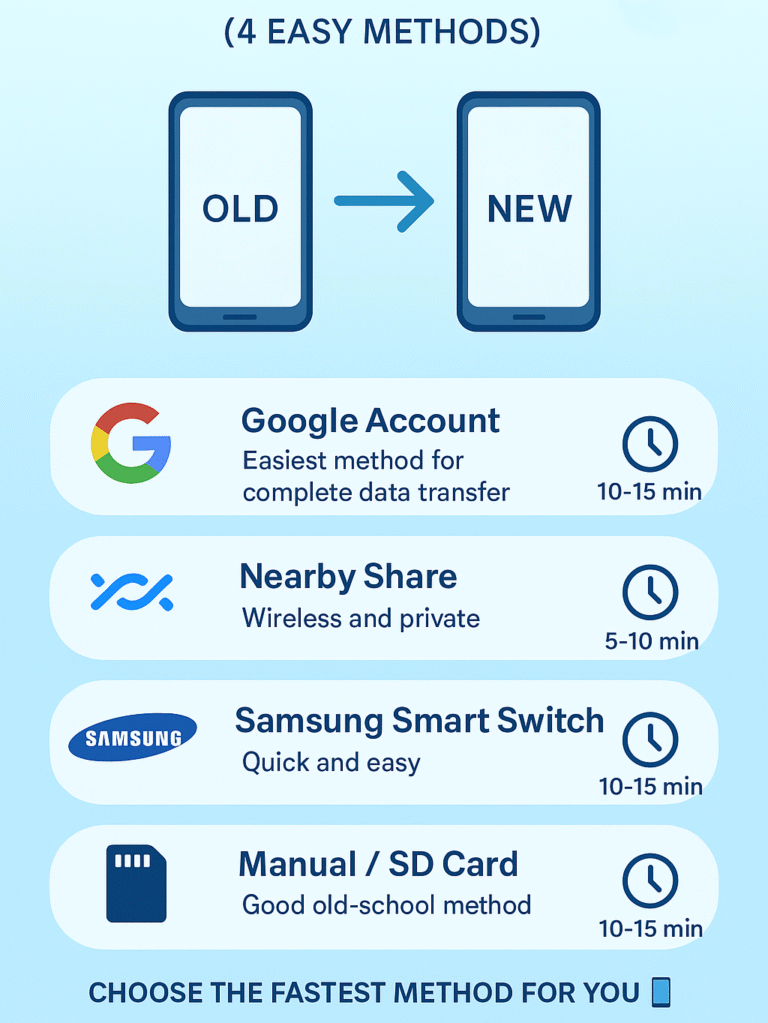
Method 2: Nearby Share or Quick Share
Turn on Bluetooth, Wi-Fi, and Location on both phones.
From the old phone → select files → Share → Nearby Share → accept on new phone.
Simple, cable-free, and private.
🔒 Tip: Always confirm the device name before accepting to avoid accidental sharing.
⏱ Takes 5–10 minutes for photos and small files.
Method 3: Samsung Smart Switch
If both phones are Samsung:
Install Smart Switch on both.
Connect via cable or Wi-Fi.
Select what to move → tap Transfer.
It’s surprisingly fast.
Official link: Samsung Smart Switch
Method 4: Manual via SD Card or File Manager
Just copy files to an SD card or USB drive → insert into new phone → paste data.
Good old-school method when Wi-Fi is slow.
Once your data is transferred, it’s smart to enable phone tracking on your new device — it helps you locate your device if it’s ever lost. You can follow this detailed guide on How to Find Your Phone Using Google or Samsung’s SmartThings Find (2025) for step-by-step instructions.
3. Transfer Data from Old iPhone to New iPhone
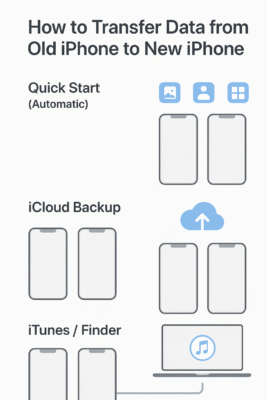
Method 1: Quick Start (Automatic)
Place the new iPhone near the old one → tap Continue → confirm Apple ID → choose Transfer from iPhone.
That’s it. Let them sit side by side for 10–20 minutes.
Official source: Apple Quick Start
Method 2: iCloud Backup
Old iPhone → Settings → iCloud → iCloud Backup → Back Up Now
New iPhone → Restore from iCloud Backup during setup.
⏱ Time: 20–40 minutes (depends on Wi-Fi speed).
Method 3: iTunes / Finder
Connect to Mac/PC → click Back Up Now → then Restore Backup on your new iPhone.
Ideal if Wi-Fi is unreliable.
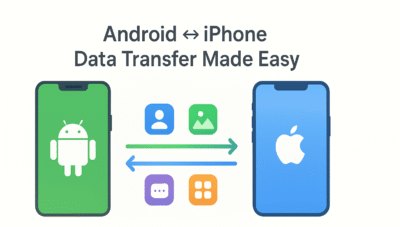
Many people struggle with how to transfer data from old phone to new phone when switching between Android and iPhone — but Apple’s Move to iOS app makes it simple.
Method 1: Move to iOS App
During iPhone setup → choose Move Data from Android.
On Android → install Move to iOS → enter code → start transfer.
Official guide: Move to iOS App
⏱ Takes about 15–25 minutes.
Method 2: Google Drive Backup
Android → Google Drive → Backup Now.
On iPhone → sign in to Google Drive → download what you need.
5. How to Transfer Data from iPhone to Android
Method 1: USB Cable During Setup
On your new Android, tap Copy apps and data, then connect your iPhone via USB cable. Follow on-screen steps to move contacts, photos, and messages.
Works great for contacts, photos, and messages.
Official link: Switch to Android
Method 2: Google Drive Backup
iPhone → install Google Drive → Settings → Backup → Start Backup.
Android → sign in with the same Google account → syncs automatically.
6. Transfer WhatsApp Chats Between Phones

| Transfer Type | Method | Notes |
|---|---|---|
| Android → Android | Chat Backup (Google Drive) | Restore on new phone |
| iPhone → iPhone | iCloud Backup | Restore from iCloud |
| Android ↔ iPhone | Move to iOS / WhatsApp Transfer Chats | Works during setup only |
Pro Tip: Don’t forget to log out of your old WhatsApp before wiping your phone — learned that the hard way 😅.
Official guide: WhatsApp Chat Transfer
7. Transfer Apps, Photos, and Files
-
Photos & Videos: Use Google Photos or iCloud Photos.
-
Documents: Transfer via Google Drive, Dropbox, or OneDrive.
-
Apps: Restored automatically from Play Store or App Store after login.
💡 When you transfer data from old phone to new phone, make sure both devices are updated. If your Wi-Fi speed is slow, avoid using cloud backup because transferring data with a USB cable is about 3 times faster and more stable, ensuring fewer interruptions or errors.
8. Common Problems & Fixes
| Problem | Solution |
|---|---|
| Contacts missing | Turn ON Google or iCloud sync to make sure contacts transfer properly. |
| Transfer stuck | Restart Wi-Fi or reconnect the cable to continue transfer smoothly. |
| WhatsApp not restoring | Use the same phone number and backup account while restoring chats. |
| iCloud full | Switch to Google Drive for more free space and faster uploads. |
If transfer stops or fails:
-
Restart both phones.
-
Try a different Wi-Fi or cable.
-
Update both phones to the latest OS version.
-
For WhatsApp, reinstall and retry with same number.
Don’t panic — your old data is still safe unless you reset the phone.
10. Bonus Tips Before Switching
-
Charge both phones above 50%.
-
Remove SIM temporarily if asked during setup.
-
Back up WhatsApp and photos separately.
-
Sign out of old Google/Apple ID before selling.
-
Cloud backups are encrypted, so your personal data stays safe.
11. Quick Tools Comparison
| Tool | Works On | Speed | Internet Needed | Ideal For |
|---|---|---|---|---|
| Google Drive | Android, iPhone | Medium | Yes | Cross-platform backup |
| Smart Switch | Samsung only | Fast | Optional | Complete phone copy |
| Move to iOS | Android → iPhone | Medium | Yes | Contacts, messages, media |
| Nearby Share | Android | Fast | No | Offline transfer |
12. FAQs
Q1. Will I lose data while changing phones?
No. If you back up and sync properly, your data stays safe.
Q2. Can I transfer everything without internet?
Yes, use Smart Switch, USB cable, or Nearby Share.
Q3. Is my cloud data secure?
Yes. Google Drive and iCloud use end-to-end encryption during backup.
Q4. Why isn’t my transfer starting?
Usually a Wi-Fi issue — switch to mobile hotspot or restart both devices.
Final Thoughts
Now you know exactly how to transfer data from old phone to new phone — quickly, safely, and without losing a thing. Honestly, switching phones in 2025 is much easier than it used to be. Use Google Sync, iCloud, or Move to iOS — and your new device will feel exactly like your old one within minutes.
If this guide helped, bookmark it — you’ll thank yourself next time you upgrade 😉.
Next Read: WiFi Password Show: How to See Your Saved WiFi Password in 2025