
WiFi Password Show: How to See Your Saved WiFi Password in 2025
WiFi Password Show — ever needed your WiFi password but just couldn’t remember it? Whether you’re setting up a new device or helping someone connect, wifi password show methods in this guide will help you recover your saved passwords easily in 2025.
Let’s explore how to show, change, and manage WiFi passwords on Android, Windows, and online — step by step.
Why You May Need to See or Change Your WiFi Password
It’s common to forget your WiFi password, especially if you’ve saved it once and never typed it again. Knowing how to check or show your WiFi password helps when:
You’re connecting a new phone or laptop.
You’ve changed your router.
You want to share WiFi with guests securely.
You’re troubleshooting a connection issue.
1. WiFi Password Show on Android (Mobile Method)
If you’re trying to show WiFi password on your Android phone, follow these updated 2025 steps to safely view saved passwords on any device — whether it’s a Samsung, Pixel, Xiaomi, or OnePlus phone.
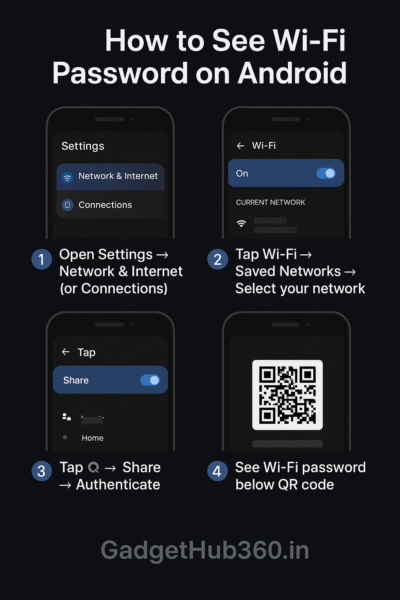
Step-by-Step Guide
Open Settings on your Android phone.
Tap Network & Internet (or Connections on some phones).
Select Wi-Fi or Internet to view available networks.
Tap Saved Networks or choose your connected network.
Tap the gear icon next to the Wi-Fi name.
Select Share.
Authenticate using your PIN, fingerprint, or face unlock.
You’ll now see a QR code with the Wi-Fi password displayed below it.
Alternate Method (on Some Devices)
On a few phones, instead of “Share,” you’ll find a password field or eye icon beside the network name.
Tap the field or icon.
Authenticate with your lock screen method.
The saved Wi-Fi password will appear in plain text.
For Samsung Devices
Go to Settings → Connections → Wi-Fi.
Tap the gear icon next to your connected network.
Choose QR Code or Share.
Save or scan the QR code using Google Lens or your Camera app to view the password.
Notes & Tips
Older Android versions (below 10) might not show the password directly.
You can also check saved Wi-Fi passwords linked with your Google account at https://passwords.google.com/
Be cautious with third-party apps — only use trusted ones if your phone doesn’t support password reveal options.
Root access is not recommended for regular users, as it can compromise device security.
These updated 2025 methods cover all major Android UI designs and security updates, ensuring you can recover or view your Wi-Fi password quickly and safely without extra apps. For official instructions on managing saved WiFi networks, you can also check Google’s official Android support page.
2. How to View WiFi Password on iPhone (iOS 17 / iOS 18)
Apple has made it easier than ever to view saved Wi-Fi passwords directly on your iPhone. You no longer need a Mac or iTunes — everything can be done right from the Settings app.
Method 1: View Current Network Password
Open Settings → Wi-Fi.
Tap the (i) icon next to the connected Wi-Fi network.
Tap Password (shown as dots).
Authenticate using Face ID or Touch ID.
The Wi-Fi password will now be revealed — tap Copy to share or save it.
Method 2: View Saved Wi-Fi Passwords (iOS 17 and later)
Open Settings → Passwords (or use the Search bar and type “Passwords”).
Scroll to the Wi-Fi Passwords section or search for a specific network name.
Authenticate with Face ID / Touch ID.
You’ll now see passwords for all Wi-Fi networks you’ve previously connected to.
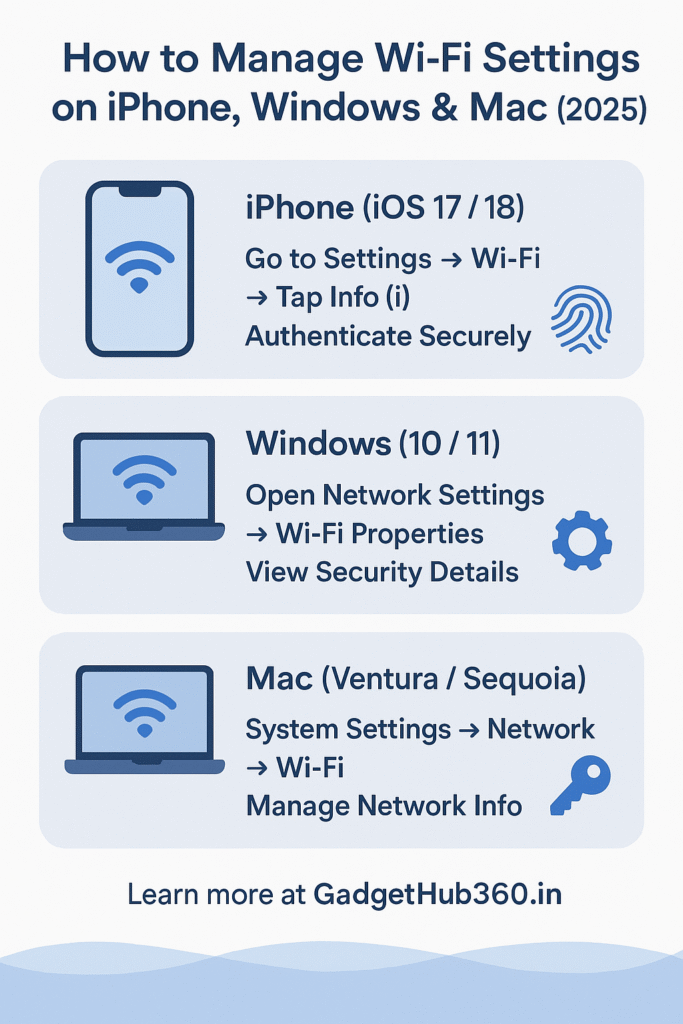
3. WiFi Password Show on Windows& Mac
If you use a laptop or desktop, here’s how wifi password show on Windows works using the latest 2025 methods.
For Windows (10 & 11)
Method 1: Settings Shortcut
Press Windows + R, type
ncpa.cpl, and press Enter.Right-click your Wi-Fi → Status → Wireless Properties → Security tab.
Tick Show characters to reveal your password.
Method 2: You can also use the wifi password show command in Windows CMD to quickly reveal saved passwords.
Open Command Prompt (Admin).
Type
netsh wlan show profile name="YourNetworkName" key=clearCheck Key Content for your Wi-Fi password.
For Mac (macOS Ventura / Sequoia)
Method 1: System Settings
Go to Apple Menu → System Settings → Network → Wi-Fi.
Click the (i) icon next to your network → Password.
Authenticate with Touch ID or password to view it.
Method 2: Keychain Access
Open Keychain Access → search your Wi-Fi name.
Double-click it → tick Show password → authenticate.
These quick 2025 steps let you safely view saved Wi-Fi passwords on both Windows and Mac — no third-party apps needed.
4. WiFi Password Show Online (Router Method)
Many users also look for wifi password show online using their browser or router login page. Here’s the safe way to do it.:
Connect your device to the router.
Open a browser and enter the address:
Usually 192.168.1.1 or 192.168.0.1.
Log in using the admin credentials (found on the router’s back).
Navigate to Wireless Settings → Security → Password/Key.
Security Tip:
Avoid entering admin credentials on unknown sites claiming to “show WiFi password online.” Always use your official router page for safety.
5. How to Change Your WiFi Password
Changing your password periodically helps protect your network from unauthorized access.
Here’s how to do it:
Log in to your router’s admin page (same as above).
Go to Wireless Settings → Password or Security Key.
Enter your new password and save the settings.
Reconnect your devices using the new password.
Pro Tip: Use a strong password combining letters, numbers, and symbols — and avoid using names or birthdays.
6. Best Practices for Managing WiFi Passwords in 2025
Use a password manager to securely store your WiFi and other passwords.
Avoid sharing passwords through text or screenshots.
Regularly update your router firmware for better security.
Keep your phone and system updated — many Android phones now let you sync WiFi credentials securely with your Google Account.
7. Frequently Asked Questions (FAQs)
Q1: Can I show WiFi password without root on Android?
Yes. Most Android 10 and above phones allow you to view saved WiFi passwords directly in settings — no root required.
Q2: Is it safe to use “WiFi password show online” websites?
No. Avoid using unverified online tools — they may steal your data. Always use your phone or router settings.
Q3: How to show WiFi password using command prompt?
Open Command Prompt and type:
netsh wlan show profile name="YourWiFiName" key=clear
This will reveal your saved password safely.
Q4: Can I change my WiFi password from mobile?
Yes. Just open your router’s IP address in a browser on your phone and log in to update the password.
Q5: How can I see my WiFi password on Mac or Windows laptop?
On Windows, use Command Prompt or Settings; on Mac, open Keychain Access or System Settings → Network → Wi-Fi.
Final Thoughts
Now you know every working wifi password show method in 2025 — whether you’re on Android, iPhone, Windows, or Mac — all without risky apps or third-party tools. Always prioritize security — use trusted methods, avoid suspicious apps or websites, and keep your router updated.
How to Find Samsung Phone Easily Using Find My Phone Samsung